

Your memory, in view.
See what you saved, return to a project and explore related notes. These short demos show Cairn’s optional dashboard: a way to browse the same local record your connected assistants use.
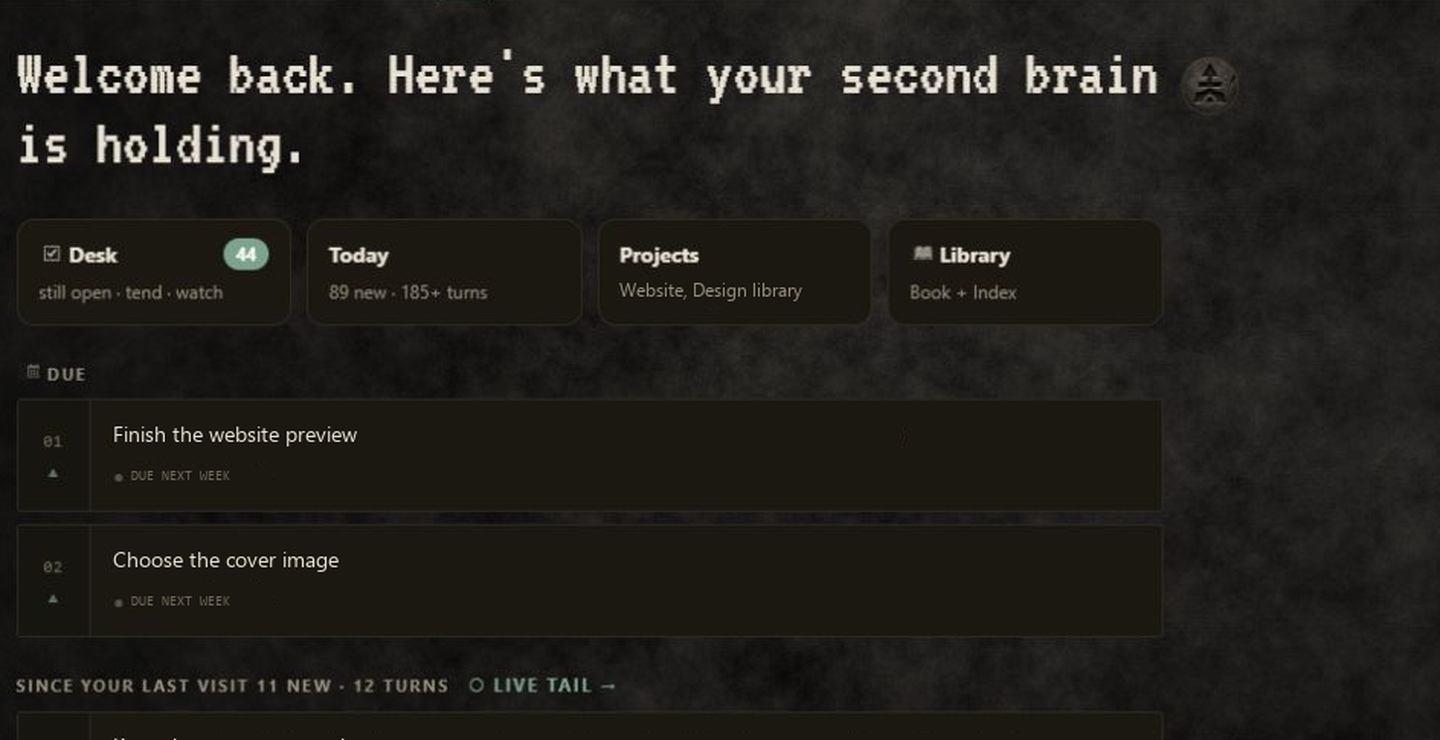
Hub
Revisit due items, recent notes and project activity.
Explore Hub →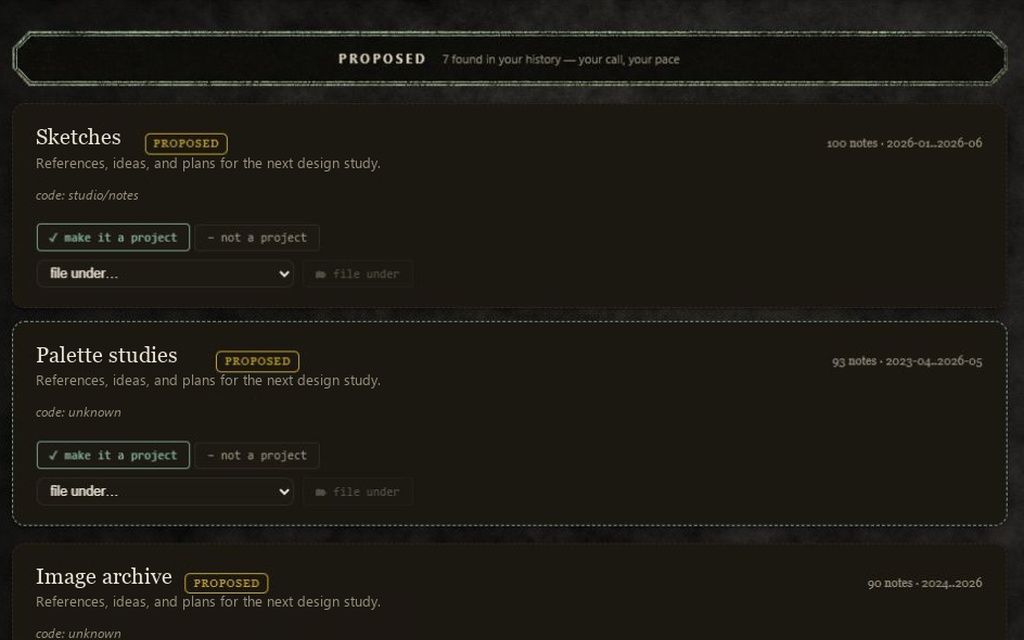
Projects
Browse your projects and review what should become one.
Explore Projects →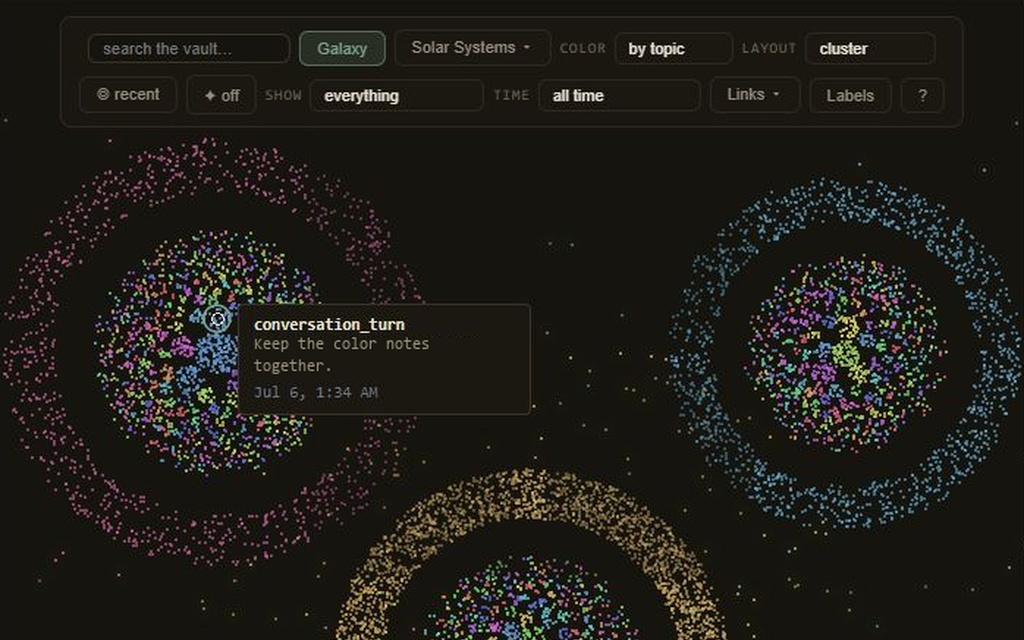
Connections
Explore linked memories and read the notes behind them.
Explore Connections →Recorded in a local Cairn installation. Private text has been replaced with examples. Exact feature parity with release 0.3.3 has not been verified.
Explore all five demos →Three things we believe

Local-first
Your vault lives in ~/.cairn/cairn.db. No Cairn cloud account or telemetry. You control the file. When you retrieve memory into a cloud AI chat, that provider receives the selected context.

Yours to keep
Keep your project’s history in a local vault you control. When a decision changes, add a correction. The original stays in the record.
Leave the why, not just the what
Save what you tried, what failed and why you chose a path. Another AI can read that work, question it and help with the next step.
Knowledge is a trail. Not a destination.
Your project’s story belongs beyond one conversation. One AI can leave a plan, another can review it, and a later session can carry it forward. You can follow the decisions and the reasons behind them.
 CAIRN REMEMBERS · SEALED MMXXVI
Separate minds. Shared context.
Save a plan with one assistant. Ask another to read it and add a review. Both use the same local vault, alongside their own context. You choose the apps and direct the handoff.
Give a compatible AI tools to save notes, find context and read the originals. Follow the setup guide for your app.
Read and write notes from a terminal, yourself or through an agent. Run indexing, maintenance and the optional dashboard here too.
Opt in to save activity from supported apps as you work. Capture varies by integration and is set up separately from MCP tools.
A place for you in the loop
Browse projects, open notes and revisit unfinished work in the optional Garden dashboard. Explore connections in the memory map, then read the notes behind them.
A night shift you control.
Run cairn sleep to index notes, group related episodes and rebuild connections locally. Run it yourself or schedule it with your operating system. Semantic indexing needs the optional embedder and an initial model download.
The day's notes are embedded — findable by meaning, not just words.
Group related episodes into summaries linked to the original notes. Use those sources when exact details matter.
Rebuild relationships and views from the available notes, ready to explore and inspect.
Check the vault’s structure and report maintenance findings for you to inspect.
Install. Connect. Try one note.
1. Install Cairn. You need Python 3.11 or newer and a terminal. Run this command:
python -m pip install cairn-remembers==0.3.32. Connect a compatible app. Follow the app setup guide below, using the python installation that has Cairn. Then fully restart the app.
3. Save and read a test note. In a new chat, ask your assistant to save “My first Cairn note” in Cairn, then read it back by ID. The dashboard, search by meaning and automatic capture are optional, separate setup steps.
Source-available under BUSL-1.1. Free for personal/non-commercial use. Commercial/business use requires a license: contact licensing.
A few useful questions
What does Cairn add to my AI’s own memory?
A shared layer the AIs you connect can read and build on. Save a decision for another session or another AI. Each AI keeps its own memory.
Can I use Cairn with just one AI?
Yes. Start with one compatible assistant, or save notes yourself from the command line or Garden. Connect more AI tools to the same vault when you want them to share saved context. Each AI keeps its own memory.
What can I use it for?
Pick up a project where you left off. Get a second AI’s take on a plan. Keep the reasons behind a decision, so you can revisit them later.
How do my AIs share the work?
Connect them to the same vault through MCP or the command line. One saves a note; another reads it. You direct the handoff. Cairn does not wake another AI on its own.
What gets saved, and who controls it?
Notes you or your AI save, plus activity from capture you enable. The vault stays on your computer. You choose which apps connect; cloud AIs receive the context you retrieve into their chats.
Can I see and fix what it remembers?
Yes. Read notes in full, or browse them in the optional Garden dashboard. Changed your mind? Add a correction. The original stays, so you can see what changed and why.
What do I need to start?
Python 3.11 or newer and a terminal. Install Cairn, connect a compatible app, then ask its assistant to save and read a test note. The steps above walk you through it.
What does it cost?
Free for personal/non-commercial use. Commercial or business use requires a license. Your AI provider’s charges still apply.
Need a hand? Get in touch with your Cairn version, operating system, AI app and a redacted error. Keep private vault contents out of support messages.