CAIRN   //   LOCAL-FIRST   //   INSIDE THE VAULT
Your AI’s own memory. Plus a shared layer.

Inside Cairn.

Keep useful work within reach.

Cairn gives your saved decisions, notes and conversations a place beyond one chat. Use it yourself, with one compatible assistant, or with several connected to the same local vault. Each AI keeps its own memory and context.

// WHAT YOU INSTALL

Start with a note. Add what you need.

01 / THE RECORD

Your local record

Save notes and decisions on your computer. Read the originals when details matter. Add corrections while keeping the earlier record.

02 / THE CONNECTION

Access from your AI

Connect a compatible app so its assistant can save and retrieve notes. You can also use Cairn directly from a terminal.

03 / THE OPTIONAL VIEW

An optional dashboard

Browse projects, topics and notes in your browser. The dashboard and search by meaning are separate, optional extras.

One shared vault, alongside each AI’s own context.

Save a plan with one assistant. Ask another to read it and add a review. Both use the same local vault, alongside their own context. You choose the apps and direct the handoff.

// BRING YOUR HISTORY WITH YOU

Start with what you already have.

Bring supported ChatGPT, Claude or Gemini exports into Cairn so earlier conversations are available in your local vault.

Import the conversation

Imports preserve available conversation text. A separate backfill workflow can extract facts and decisions. The detail available depends on the export.

Keep recording new work

Save notes as you go, or enable a supported capture integration. What gets recorded depends on the client and settings. Connecting an app alone does not record every conversation.

// START YOUR TRAIL

Install. Connect. Try one note.

  1. Install Cairn. You need Python 3.11 or newer and a terminal. Start with the install command on the homepage.
  2. Connect a compatible app. Follow your app’s instructions in the setup guide, then fully restart the app.
  3. Save and read a test note. In a new chat, ask your assistant to save “My first Cairn note” in Cairn, then read it back by ID.

Cairn is source-available under BUSL-1.1. Free for personal/non-commercial use; commercial/business use requires a license. See the license. AI provider charges still apply.

// INSIDE THE DASHBOARD

Find your way back to the work.

Recorded in a local Cairn installation. Private text has been replaced with examples. Exact feature parity with release 0.3.3 has not been verified. About the recordings ↓

FIG.01 / Hub

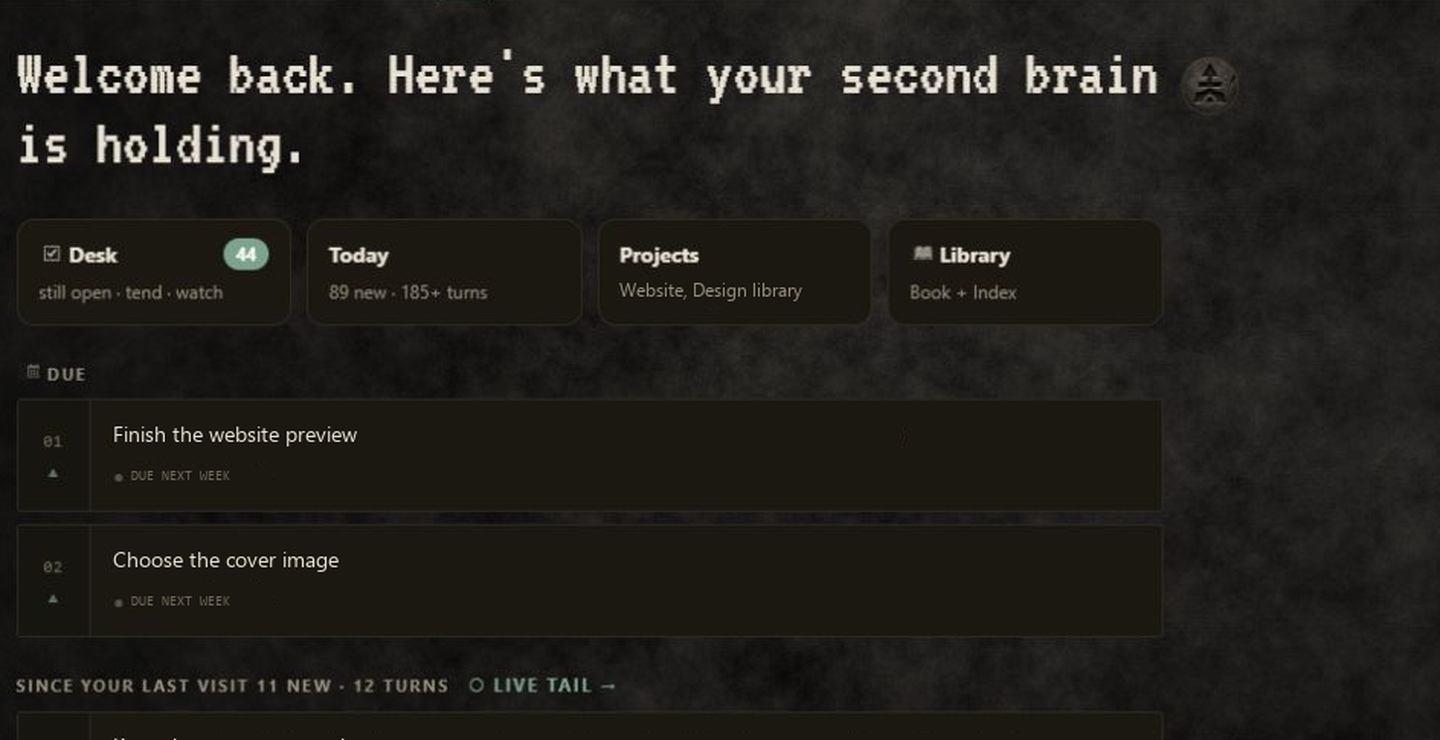
Pick up where you left off.

Check due items, return to recent notes and see activity across your projects.
Hub in Cairn; private text replaced with examples

9 seconds · Silent video · Example private text

Open video ↗
What this clip shows

The view moves from the welcome and Desk / Today / Projects / Library cards through due items, recent notes, and project activity. Memory kinds, counts, timestamps, and the more-projects control stay visible.

Private note text, project names, and personal due dates use examples.
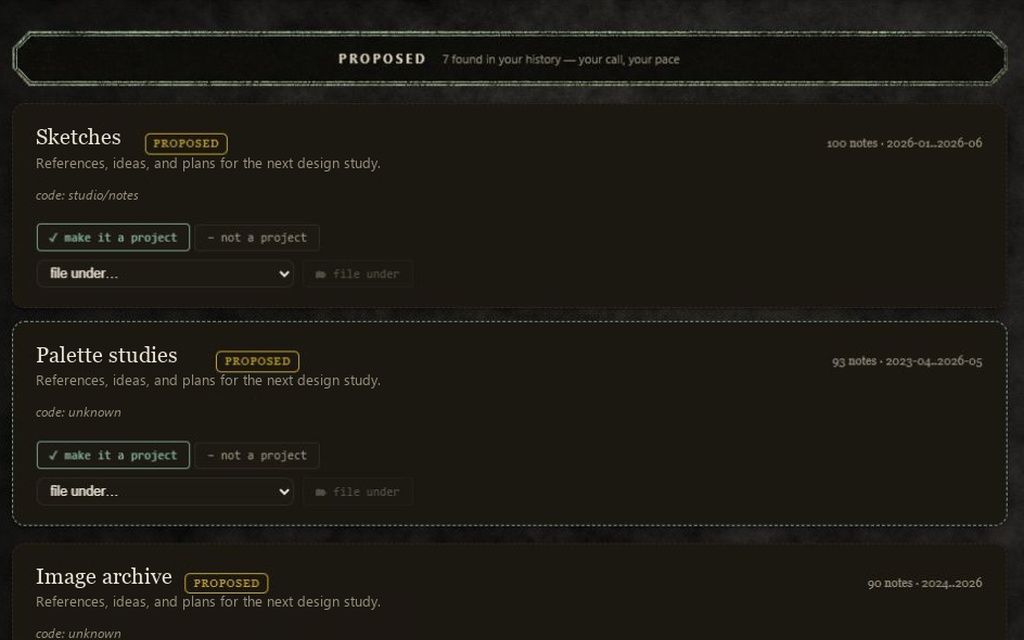
FIG.02 / Projects

Keep related work together.

Browse established projects and review suggested groupings. The clip shows the available choices; it does not apply a project change.

Projects in Cairn; private text replaced with examples

18 seconds · Silent video · Example private text

Open video ↗
What this clip shows

Approved projects open the clip. Proposed candidates follow, with “make it a project”, “not a project”, and “file under” controls. Emerging candidates finish the tour, holding on “promote to project” and “not a project”. No project action is pressed in this recording.

Private project names and descriptions use examples.

FIG.03 / Index

Browse notes by topic

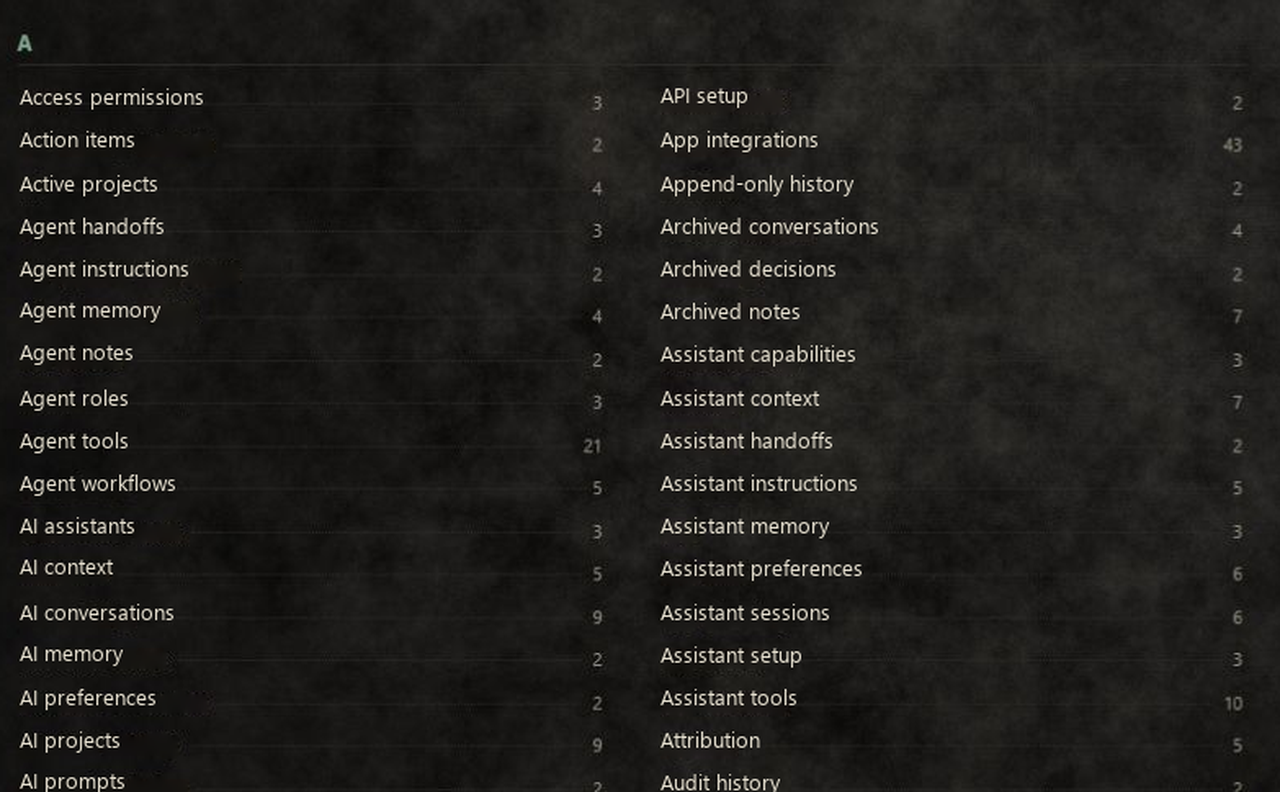
Browse saved notes by topic. This clip scrolls through example AI and memory topics, with the recorded counts beside them.

Index in Cairn; private text replaced with examples

6 seconds · Silent video · Example private text

Open video ↗
What this clip shows

The Index shows a populated A section with example AI and memory topics. The view scrolls down through the two-column list, then holds on the final rows. Counts and controls are retained from the recording; clip timing is edited.

Private topic names use examples.

FIG.04 / Live Feed

See what reached the vault.

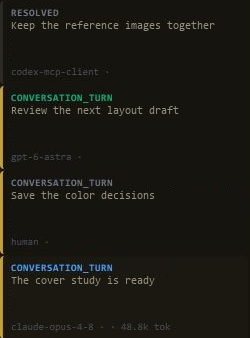
Inspect recorded activity and its source labels. This clip combines two recordings; it does not show a new handoff between assistants.

Live Feed in Cairn; private text replaced with examples

A record with its source attached

See whether a recorded entry came from a person, model or tool.

Capture depends on what you connect

The feed shows what your integration records. Automatic capture is enabled separately from the connection to your app.

Open the video for a closer look. Its narrow source recording limits text size.

14 seconds · Silent video · Example private text

Open video ↗
What this clip shows

The first four seconds show an earlier genuine READ event, labeled “live”, “31ms”, and “1 results”. The video then cuts to a separate recording containing gpt-6-astra, human, and claude-opus-4-8 entries, including the original 48.8k tok field. This is a tour of recorded activity; it does not demonstrate a new cross-assistant handoff.

Private query text uses examples. Tool, model, human, and client labels are original.

FIG.05 / Connections

Explore related memories.

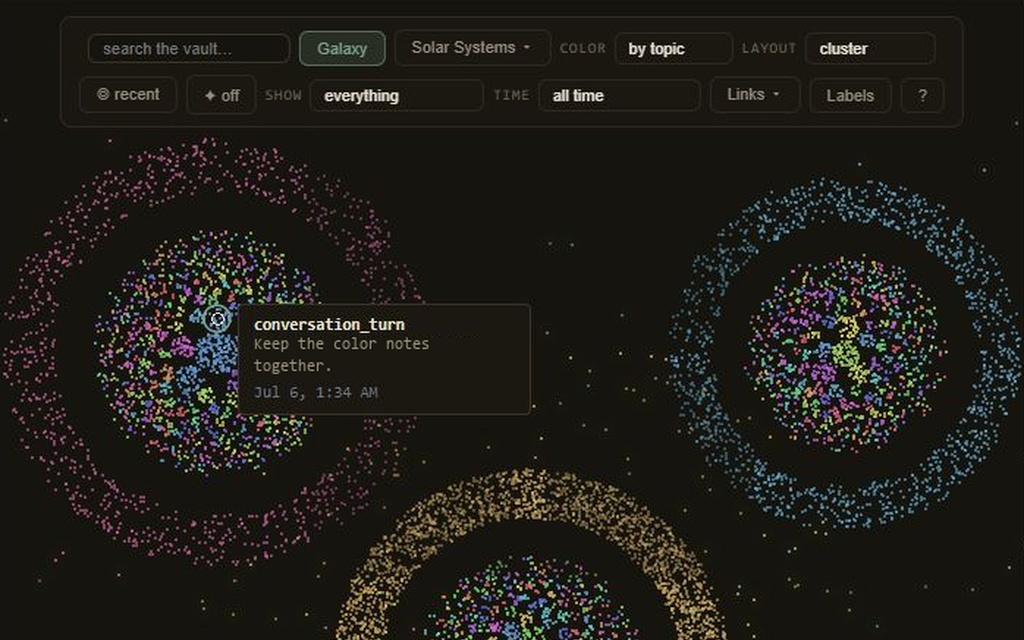
Hover over points in the memory map to preview their notes, kinds and dates. The clip shows five recorded positions.

Connections in Cairn; private text replaced with examples

8 seconds · Silent video · Example private text

Open video ↗
What this clip shows

Five recorded hover positions reveal connected memories. Each tooltip retains its actual kind and date; only its private excerpt is replaced. The graph and links are original, with no Recent-ring toggles or invented interactions.

Private tooltip excerpts use examples.

// A FEW USEFUL DETAILS

Know what you’re looking at.

Are these recordings of the app?

Yes. They use recorded interface frames. Private names, queries and excerpts have been replaced with illustrative text. Memory counts, tool metadata, model and human attribution, and the project action controls are retained. No project action is performed in the Projects clip.

Which version is shown?

These videos were made in a local installation. We have not verified that every filmed control is available in release 0.3.3, which the homepage setup links use. Check the guide for your installed version.

Can I use Cairn with just one AI?

Yes. Start with one compatible assistant, or save notes yourself from the command line or Garden. Connect more AI tools to the same vault when you want them to share saved context. Each AI keeps its own memory.

Does connecting an AI record every conversation?

No. Memory tools let a connected client read and write the vault. Capture is configured separately and varies by integration. Check what your setup actually records.

Does the memory stay on my computer?

The vault is local. When you retrieve selected memories into a cloud AI conversation, that provider receives the selected context. You choose which clients connect and what capture to enable.

Can I start with earlier conversations?

Yes. Cairn has import paths for supported ChatGPT, Claude and Gemini exports. They bring conversation text into the vault; a separate backfill workflow can distill useful facts and decisions. Available detail depends on the source format.

Cairn demo

Open the dedicated player ↗